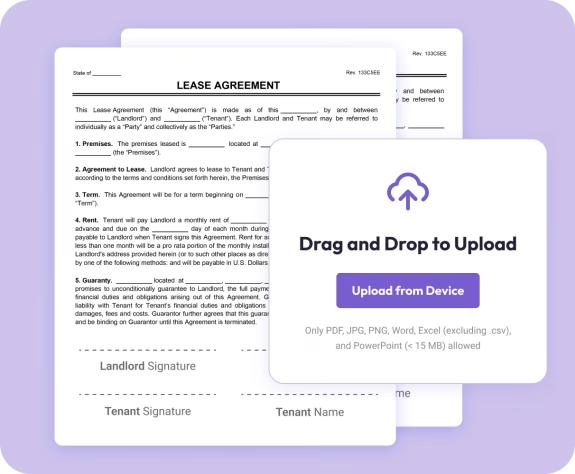
The fastest way to password protect a PDF online
Fast. Simple. No software needed.
How to Lock a PDF
01.
Upload Your PDF
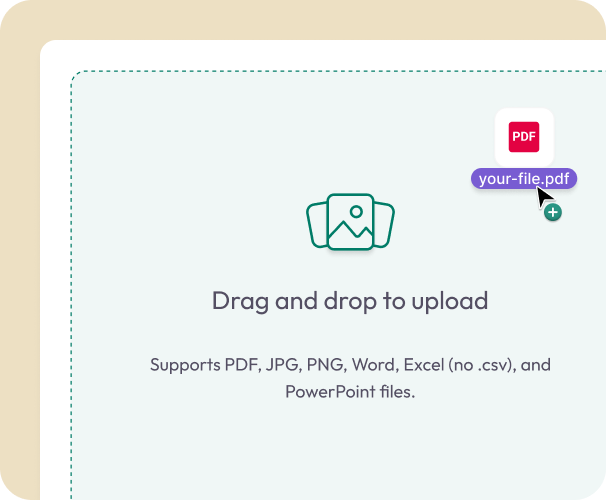
- Drag your document into the upload area or select it from your device.
02.
Set a Password
- Choose a strong password to restrict opening, editing, printing, or copying.

03.
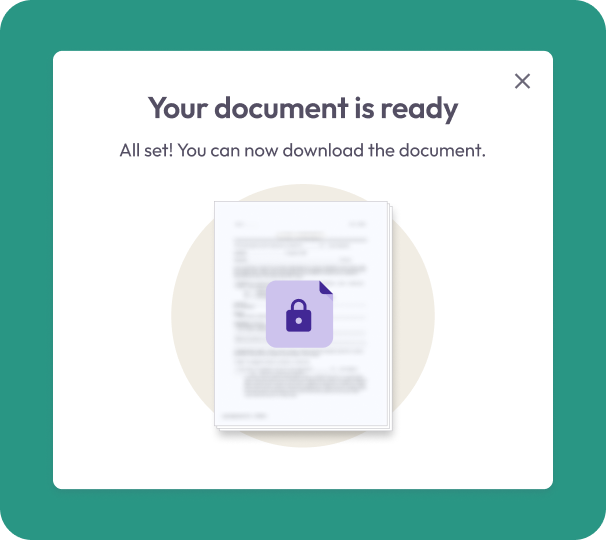
Download the Locked File
- Download your newly locked PDF or save it to your Document Genius account for safekeeping.
Why Use Our Lock PDF Tool
Instant protection
Add a password and secure your document in seconds.
Works with any standard PDF
Protect contracts, financial documents, forms, records, and more.
No software needed
Lock your PDF directly in your browser on your phone, tablet, or computer.

Keeps your layout intact
Password protection does not change your formatting, text, or design.
Part of a complete PDF toolkit
Use the same workspace to edit, merge, split, reorganize, convert, or e-sign your documents.
Free Online PDF Lock Tool
Password Protecting PDFs — What You Need to Know
Locking a PDF with a password prevents unauthorised users from opening, editing, copying, or printing your document. Document Genius makes it simple to add password protection to any PDF directly in your browser.
What Does Locking a PDF Do?
A locked PDF requires a password to open. You can also restrict specific actions — preventing editing, copying content, or printing — while still allowing authorised users to view the document.
How Strong Should My Password Be?
Use a password of at least 8 characters combining uppercase and lowercase letters, numbers, and symbols. Avoid dictionary words. The stronger your password, the harder it is to crack — Document Genius will indicate password strength as you type.
What's the Difference Between Locking and Encrypting?
Locking adds a password to restrict who can open or modify your PDF. Full encryption goes further by scrambling the file content itself. Document Genius adds password protection — sufficient for most everyday document security needs.